
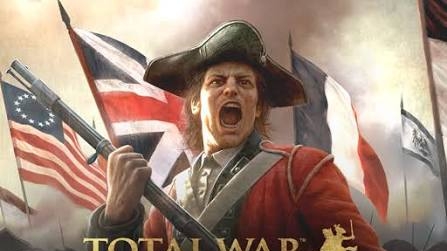
At A Glance
- Which graphics and performance settings to adjust for smoother mobile play.
- Device-specific tips and how to diagnose performance bottlenecks.
- Troubleshooting common issues: crashes, low FPS, UI glitches and compatibility.
Playing Empire: Total War Mobile on your device should feel smooth and responsive—but mobile strategy games of this scale can be demanding, especially real-time battles and large map turns. Many players report performance issues such as lag, frame-drops or crashes. This guide helps you optimise your settings, fix common issues and ensure your device is ready for large scale warfare.
Checking Device Requirements & Compatibility
Before any tuning, make sure your device meets or exceeds the game’s recommended specs. Some players report their phone has high specs but still shows “device not compatible” in the store. There’s a published list of supported devices on forums.
Pro Tip: Even if your hardware is strong, check if there are background apps or thermal throttling—mobile performance often hinges on device heat and background load.
Steps to take:
- Close all background apps and restart your device.
- Make sure your OS and GPU drivers (if applicable) are updated.
- If you’re on Android, turn off battery-saver or low-power mode during play; these modes often restrict frame-rate or background processes.
- Monitor your device temperature—if it gets very hot your GPU/CPU may throttle automatically, causing stutters.
Best Graphics & Performance Settings
Here are recommended settings to balance visual quality and performance on mobile:
- Resolution / Display Scaling: Lower resolution or “medium” scaling if your device struggles at high. This has large impact on FPS.
- Unit Scale / Detail: Reduce unit scale or detail during large battles. Fewer units on screen at full quality help maintain performance.
- Shadows & Post-Processing: Toggle off shadows or high tier post-processing effects—nice to have, but heavy on mobile GPUs.
- Anti-Aliasing / Motion Blur: Disable motion blur, reduce anti-aliasing where possible—cleaner visuals with higher FPS.
- Draw Distance / Terrain Detail: Lower these in large land or naval battles to ease load on GPU and memory.
- Frame-Rate Cap / VSync: If your device allows setting a cap (e.g., 30fps vs 60fps), choosing 30fps gives stability, especially during heavy action.
Pro Tip: If the game offers “auto adjust quality” or “adaptive performance” mode, use it—mobile studios often include this for older/less capable hardware.
Diagnosing Performance Bottlenecks
If your game still lags or crashes, you need to identify where the bottleneck is: GPU, CPU, memory, or thermal.
- If frame-rate drops only in big battles with many units or ships, likely GPU limiting. Lower detail or unit count.
- If the game crashes or freezes mid-battle, your device may be overheating or low on memory. Close apps and let device cool.
- If turns on campaign map load slowly or stutter, the issue may be memory or loading bottleneck—lower graphics or clear cache.
- For mobile ports, sometimes the issue is UI/controls adaptation—if you notice micro-lags when issuing commands, try reducing touch-sensitivity or disable unnecessary overlays.
- Some players reported the AI on Hard mode kept declaring wars or doing strange actions; while it’s not strictly performance, odd AI behaviour can add unexpected load and chaos. Lowering difficulty may reduce unexpected events and mildly improve smoothness.
Common Bug Fixes & Stability Tips
- If the game seems compatible but will not install, check if your device is officially on the “supported list.” Some users emailed support and got their device whitelisted.
- If the game crashes after saving or loading, ensure your device has enough free storage and that system updates are completed. Some users reported consistent crashes after turn 43.
- Keep the game updated: mobile ports often receive patches for performance/stability earlier than major PC updates.
- If thermal throttling is occurring (device hot, then lag), play in cooler environment, disable fast-charging mode, or limit play sessions.
- If you experience UI or touch-input problems (units mis-formed/selection lag), lower unit count or disable motion blur/unnecessary visual effects.
Pre-Battle & Campaign Map Tips for Performance
- Before big battles, if you have the option, save and restart the game so memory is cleared.
- On campaign map, avoid zooming out too far or having too many overlays open. The bigger the visible map, the more rendering load.
- If your campaign includes many fleets/armies visible, consider hiding or minimising distant units when possible (some ports allow toggles).
- During real-time battles, you can reduce the number of visible unit icons or minimap updates to improve performance.
Final Thoughts
Getting smooth performance in Empire: Total War Mobile is about more than just “my phone is good”. It requires tuning settings, managing resource/thermal constraints, and adapting expectations for mobile hardware. By following the steps above—checking compatibility, adjusting key graphics settings, diagnosing bottlenecks and using stable practices—you’ll improve your gameplay experience significantly. Whether you’re fighting huge land battles or massive naval engagements, performance consistency gives you the breathing room to focus on strategy, not frame-drops. Enjoy your campaign and conquer with confidence.